Editable Table in JavaScript: Add Inline Editing to Any Data Table
The spec says "users can edit values directly in the table". It sounds like a small requirement, and then it turns into input types, validation, keyboard navigation, undo, adding and deleting rows, and saving changes back to an API. This guide shows how to build an editable table in JavaScript (and React) without writing any of that from scratch.
We will cover the do it yourself approach with contenteditable first, so you can see where it runs out, then build a full editable data table with Tabulator, a free MIT licensed library where editing is built in.
The short answer
- A throwaway table with one or two text cells:
contenteditableis fine. - Anything a user will rely on: use a data grid with built in editors, validation and change events. Tabulator gives you all of these for free.
- Using React: mount Tabulator in a
ref, or use a headless table library and build your own inputs.
Try it: a live editable table
This is a real Tabulator instance. Click a cell to edit the name, drag the progress bar, click the stars or tick the checkbox. Use Tab to move between cells, and Esc to cancel an edit.
Option 1: contenteditable (and where it breaks)
The quickest way to make a table cell editable is the contenteditable attribute:
document.querySelectorAll("#people td").forEach(td => {
  td.contentEditable = "true";
  td.addEventListener("blur", () => {
    console.log("changed to", td.textContent);
  });
});
This works for plain text, but real requirements arrive quickly:
- Typed inputs. A number, a date, a dropdown or a checkbox needs its own control, and
contenteditableonly gives you free text. - Validation. Nothing stops someone typing "abc" into an age column.
- Data model. The DOM becomes the source of truth. You have to read values back out of the markup to save them.
- Keyboard and focus. Tab order, Enter to commit, Escape to cancel and arrow key navigation are all yours to build.
- Scale. Rendering thousands of editable cells in the DOM gets slow without virtual rendering.
That is the point where teams reach for a library. See our comparison of JavaScript table libraries if you are still choosing one.
Option 2: an editable data table with Tabulator
In Tabulator you describe the data and the columns, and choose an editor for each column. The table owns the data model, so you never scrape the DOM.
1. Install and create a table
npm install tabulator-tables
import { TabulatorFull as Tabulator } from "tabulator-tables";
import "tabulator-tables/dist/css/tabulator.min.css";

const table = new Tabulator("#people", {
  data: [
    { id: 1, name: "Oli Bob", age: 12, role: "Designer", active: true },
    { id: 2, name: "Mary May", age: 41, role: "Engineer", active: false },
  ],
  layout: "fitColumns",
  columns: [
    { title: "Name", field: "name", editor: "input" },
    { title: "Age", field: "age", editor: "number" },
    { title: "Role", field: "role", editor: "list", editorParams: { values: ["Designer", "Engineer", "Manager"] } },
    { title: "Active", field: "active", editor: "tickCross", formatter: "tickCross" },
  ],
});
Prefer a CDN? Use a script tag for https://unpkg.com/tabulator-tables/dist/js/tabulator.min.js, see the install guide. You can also turn an existing HTML table into a grid, which is handy when you are upgrading server rendered markup.
2. Pick the right editor for each column
Setting editor on a column is all it takes. Tabulator ships editors for input, textarea, number, range, tickCross, star, progress, date, time, datetime and list (a select or autocomplete, with optional remote values). Pass editorParams to configure them, for example a min and max on a number or a list of allowed values. The full set is in the editing docs.
If you need an editor that does not exist, custom editors let you return any DOM element, so you can plug in a date picker or a rich control.
3. Control when cells are editable
Not every cell should be editable all of the time. Use the editable option on a column with a function that receives the cell:
{
  title: "Name",
  field: "name",
  editor: "input",
  // only adults can have their name edited
  editable: cell => cell.getRow().getData().age > 18,
}
To change how an edit starts, set editTriggerEvent to "focus" (the default), "click" or "dblclick". Double click is a good choice for tables where accidental edits would be costly.
4. Validate user input
Add a validator to a column and Tabulator checks values as they are entered. Built in validators include required, unique, integer, numeric, min, max, minLength, maxLength, in and regex. You can stack them in an array:
{ title: "Name", field: "name", editor: "input", validator: ["required", "minLength:2"] },
{ title: "Age", field: "age", editor: "number", validator: ["required", "min:0", "max:120"] },
By default the user cannot leave a cell until the value is valid or they press Escape. If you would rather let them continue and flag problems, set validationMode: "highlight" and call table.getInvalidCells() before saving. A custom function can be used for rules like "must be unique within this team". More in the validation docs.
5. Add and delete rows
Rows are managed with plain API calls, so any button in your UI can drive them:
// add a blank row at the top, then start editing its first cell
document.getElementById("add").addEventListener("click", async () => {
  const row = await table.addRow({ name: "", age: null, role: "Designer", active: true }, true);
  row.getCell("name").edit();
});

// a delete button column
{
  formatter: "buttonCross",
  width: 40,
  hozAlign: "center",
  cellClick: (e, cell) => cell.getRow().delete(),
}
6. Undo and redo
Turn on history: true and Tabulator records cell edits, row additions and deletions. Call table.undo() and table.redo() from your own buttons. The history docs also describe the built in keybindings.
7. Save changes to your API
The cellEdited event fires after a successful edit, with the cell and its row data. That makes autosave a few lines:
table.on("cellEdited", async cell => {
  const row = cell.getRow().getData();
  const res = await fetch("/api/people/" + row.id, {
    method: "PATCH",
    headers: { "Content-Type": "application/json" },
    body: JSON.stringify({ [cell.getField()]: cell.getValue() }),
  });
  if (!res.ok) {
    cell.restoreOldValue(); // roll the cell back if the server rejects it
  }
});
If you would rather save in one batch with a Save button, call table.getEditedCells() to find what changed, or table.getData() to send everything, then table.clearCellEdited() once the request succeeds. Tabulator can also load its data from an API with ajax options, including remote pagination, filtering and sorting.
Editable table in React
Because Tabulator is plain JavaScript, it works in React by mounting into a ref and cleaning up when the component unmounts. Keep the table instance in a ref and push saves out through callbacks:
import { useEffect, useRef } from "react";
import { TabulatorFull as Tabulator } from "tabulator-tables";
import "tabulator-tables/dist/css/tabulator.min.css";

export default function EditablePeople({ data, onSave }) {
  const el = useRef(null);
  const table = useRef(null);

  useEffect(() => {
    table.current = new Tabulator(el.current, {
      data,
      layout: "fitColumns",
      history: true,
      columns: [
        { title: "Name", field: "name", editor: "input", validator: "required" },
        { title: "Age", field: "age", editor: "number", validator: "min:0" },
      ],
    });
    table.current.on("cellEdited", cell => onSave(cell.getRow().getData()));
    return () => table.current.destroy();
  }, []);

  return <div ref={el} />;
}
This avoids the usual React editable table pain: managing a controlled input for every cell, tracking which one is active and re-rendering large lists on each keystroke. The React setup guide covers more, including the community wrapper. If you want every pixel to be a React component, a headless library such as TanStack Table gives you the logic and you build the inputs yourself, see the best React table libraries.
Spreadsheet style editing
If your users expect Excel behaviour, such as selecting a range of cells, copying and pasting between the grid and a spreadsheet, and arrow key navigation, Tabulator has spreadsheet mode, range selection and clipboard support, also under the MIT licence. In React, see the React spreadsheet component guide for a ready made component.
Other editable table libraries
Tabulator is not the only option. Here is how the others handle editing, with the caveat that licensing is where they differ most.
DataTables Editor
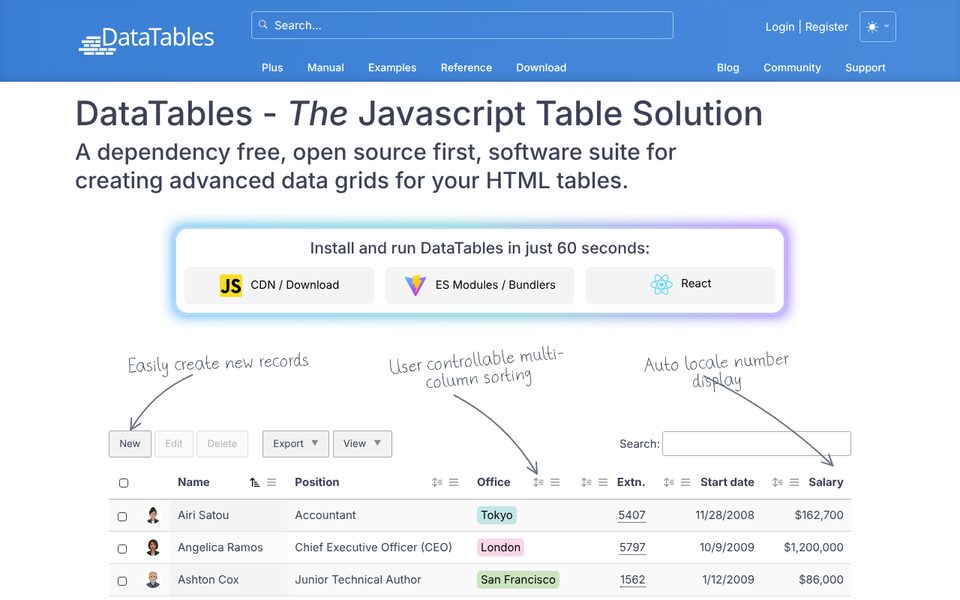
The DataTables core is MIT, but inline editing comes from Editor, a paid extension sold in the DataTables Plus suite. See DataTables Editor pricing for what it costs and the free plugins, and the full DataTables alternatives guide for the trade-offs.
AG Grid
AG Grid has strong cell editing in the free Community edition, including full row editing. Some editors, such as the rich select, and advanced features sit in the commercial Enterprise edition.

Handsontable
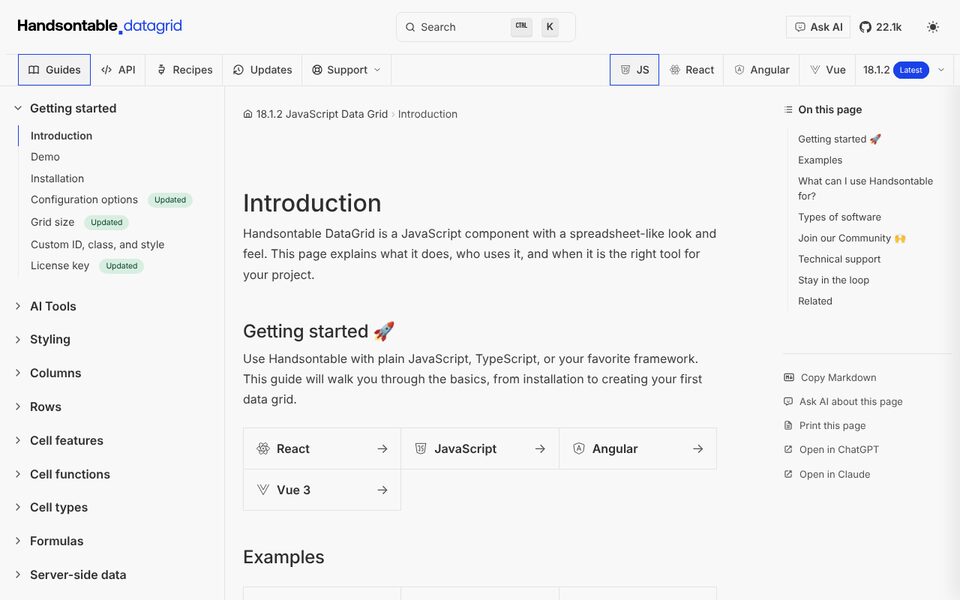
Handsontable is the closest to a spreadsheet and has excellent editing, but it needs a commercial licence for commercial use (see Handsontable pricing).
Frequently asked questions
How do I make a table editable in JavaScript?
For simple text, set contenteditable="true" on the cells. For typed inputs, validation and saving, use a data grid library. In Tabulator you set an editor on each column and listen for the cellEdited event.
How do I make an editable table in React?
Either build controlled inputs for each cell, or mount a grid with built in editors such as Tabulator into a ref inside useEffect. The second approach is much less code for tables with many columns and rows.
How do I save edited table data?
Listen for the cellEdited event and send the change to your API, or collect table.getData() when the user presses a Save button.
How do I validate input in an editable table?
Add a validator to the column definition, such as "required", "min:0" or a custom function. Tabulator blocks invalid edits by default, or highlights them if you choose highlight mode.
Is there a free editable data grid?
Yes. Tabulator is MIT licensed and includes every editor, validators, history and clipboard support with no paid tier.
Get started
Deciding where inline editing fits in the rest of the table? See data table UI design best practices.
Want Excel-style range selection and paste? See the JavaScript spreadsheet library comparison.
Building in React? See the React data table with pagination, sorting and filtering guide.
Need an Export to Excel, CSV or PDF button? See how to export an HTML table to Excel, CSV and PDF.
Need users to reorder rows too? See how to drag and drop table rows in JavaScript.
Read the editing docs, try the examples, or follow the quickstart. The source is on GitHub.