Export an HTML Table to Excel, CSV and PDF in JavaScript
The ticket says "add an Export to Excel button to the table". It sounds like ten minutes of work, until the export has to respect filters, include only selected rows, keep numbers as numbers, handle commas and quotes, and open cleanly in Excel with accented characters.
This guide shows how to export an HTML table to CSV, Excel (XLSX), PDF and JSON in JavaScript. We start with plain JavaScript and SheetJS so you can see how it works and where it gets painful, then do the same with Tabulator, a free MIT licensed data grid where each export is a single table.download() call. If you are still choosing a library, see our comparison of JavaScript table libraries.
The short answer
- CSV from a small static table: about 15 lines of plain JavaScript and a
Blob. - Excel (.xlsx): use SheetJS. One call converts an HTML table to a workbook.
- PDF: use jsPDF with the AutoTable plugin.
- Filtered, sorted or selected data, and all of the above behind one API: use a data grid. In Tabulator,
table.download("xlsx", "data.xlsx")exports exactly the rows you choose, with no paid tier.
Option 1: export an HTML table to CSV with plain JavaScript
CSV is just text, so you can build it yourself. Read the cells, quote them, join them, and hand the result to the browser as a file:
function tableToCSV(table) {
  const rows = Array.from(table.rows);
  return rows.map(row =>
    Array.from(row.cells)
      .map(cell => '"' + cell.textContent.trim().replace(/"/g, '""') + '"')
      .join(",")
  ).join("\n");
}

function downloadFile(content, filename, type) {
  const blob = new Blob([content], { type });
  const url = URL.createObjectURL(blob);
  const a = document.createElement("a");
  a.href = url;
  a.download = filename;
  a.click();
  URL.revokeObjectURL(url);
}

document.getElementById("export-csv").addEventListener("click", () => {
  const csv = tableToCSV(document.getElementById("people"));
  // The leading  is a byte order mark so Excel reads UTF-8 correctly
  downloadFile("" + csv, "people.csv", "text/csv;charset=utf-8");
});
Doubling the quotes ("") is what keeps a cell containing a comma or a quote from breaking the file. The byte order mark matters more than it looks: without it, Excel often shows é instead of é.
Option 2: export an HTML table to Excel with SheetJS
A real .xlsx file is a zipped bundle of XML, so you do not want to write one by hand. SheetJS is the standard library for this and can convert an HTML table straight into a workbook:
import * as XLSX from "xlsx";

function exportToExcel() {
  const table = document.getElementById("people");
  const workbook = XLSX.utils.table_to_book(table, { sheet: "People" });
  XLSX.writeFile(workbook, "people.xlsx");
}
This is short, but notice what it reads: the HTML table. Whatever the user sees in the DOM is what you export. That is fine for a static table and a problem for a big one, which is covered next.
Option 3: export an HTML table to PDF
The common route is jsPDF with the AutoTable plugin, which turns a table element into a paginated PDF table:
import { jsPDF } from "jspdf";
import autoTable from "jspdf-autotable";

const doc = new jsPDF({ orientation: "landscape" });
autoTable(doc, { html: "#people" });
doc.save("people.pdf");
Where plain JavaScript exports break down
- The DOM is not your data. If the table is paginated or virtualized, the rows that are not on screen are not in the DOM, so they are not in your export.
- Filters and sorting. Exports that read the DOM export what is visible. Users usually want the filtered result, sometimes everything, sometimes only selected rows. You have to build each of those yourself.
- Typed values. Reading
textContentturns numbers, dates and booleans into strings, so Excel shows numbers as text unless you convert them back. - Formatting. Cells that show a progress bar, a star rating or a link export as whatever text happens to be inside.
- Three formats, three code paths. CSV, XLSX and PDF each need their own function, and each has its own quirks.
A data grid keeps the data separate from the DOM, which is what makes exporting clean.
Option 4: export to CSV, Excel, PDF and JSON with Tabulator
Tabulator holds your data in memory and renders only what is visible, so exports come from the data and not from the page. Every format uses the same method, table.download().
1. Create a table
import { TabulatorFull as Tabulator } from "tabulator-tables";

const table = new Tabulator("#people", {
  data: people,
  layout: "fitColumns",
  columns: [
    { title: "Name", field: "name", headerFilter: "input" },
    { title: "Age", field: "age", sorter: "number", hozAlign: "right" },
    { title: "Joined", field: "joined", sorter: "date" },
    { title: "Active", field: "active", formatter: "tickCross" },
  ],
});
Prefer a script tag? See the install guide. Already have an HTML table? Tabulator can convert it in place.
2. Download CSV and JSON
These two work out of the box, with no extra libraries:
document.getElementById("export-csv").addEventListener("click", () => {
  table.download("csv", "people.csv");
});

document.getElementById("export-json").addEventListener("click", () => {
  table.download("json", "people.json");
});
Need a different delimiter, or a byte order mark so Excel reads UTF-8? Pass options: table.download("csv", "people.csv", { delimiter: ";", bom: true }).
3. Download Excel (XLSX)
Tabulator's XLSX export uses SheetJS under the hood. Load SheetJS on the page, or pass it in with the dependencies option when you use a bundler (see the dependencies docs), then:
import * as XLSX from "xlsx";

const table = new Tabulator("#people", {
  data: people,
  dependencies: { XLSX },
  columns: [ /* ... */ ],
});

table.download("xlsx", "people.xlsx", { sheetName: "People" });
You can also write several tables into one workbook with the sheets option, one tab per table. See the XLSX download docs.
4. Download PDF
PDF export uses jsPDF and the AutoTable plugin, registered the same way:
import jsPDF from "jspdf";
import { applyPlugin } from "jspdf-autotable";

applyPlugin(jsPDF);

const table = new Tabulator("#people", {
  data: people,
  dependencies: { jspdf: jsPDF },
  columns: [ /* ... */ ],
});

table.download("pdf", "people.pdf", {
  orientation: "portrait",
  title: "People report",
});
Use table.downloadToTab("pdf") to preview the PDF in a new tab instead of downloading it. Page orientation, styling and the full AutoTable options are covered in the PDF download docs.
5. Choose which rows are exported
This is where a grid beats DOM scraping. By default only rows that pass the current filters are exported, and you control the rest with downloadRowRange or the fourth argument of download:
table.download("csv", "filtered.csv");                  // active rows (default)
table.download("csv", "everything.csv", {}, "all");     // every row, ignoring filters
table.download("csv", "selected.csv", {}, "selected");  // only selected rows
table.download("csv", "on-screen.csv", {}, "visible");  // only what is in the viewport
Because the export reads data and not the DOM, it works the same whether the table has 50 rows or 50,000, and it includes rows that are scrolled out of view. Exports also include column header groups, row groups and column calculations where the format supports them (CSV does not), and you can switch each off with downloadConfig.
6. Format the output
Use accessorDownload on a column to change what goes into the file without changing what is on screen. For example, export a raw ISO date while the grid shows a friendly one:
{
  title: "Joined",
  field: "joined",
  formatter: "datetime",
  formatterParams: { outputFormat: "dd/MM/yyyy" },
  accessorDownload: (value) => value, // export the raw value
}
If you need a format Tabulator does not ship, such as a custom text layout, download also accepts a function, so you can write your own file formatter. See advanced download options.
Export an HTML table to JSON
If all you need is the data from an existing HTML table as JSON, load the table into Tabulator and call table.getData(), or table.download("json", "data.json") for a file. You get typed objects keyed by field name instead of an array of strings.
How the options compare
| Plain JS + SheetJS + jsPDF | Tabulator | |
|---|---|---|
| CSV | Write it yourself | download("csv") |
| Excel | SheetJS | download("xlsx") (uses SheetJS) |
| jsPDF + AutoTable | download("pdf") (uses jsPDF + AutoTable) | |
| Respects filters and selection | Build it yourself | Built in (downloadRowRange) |
| Includes off-screen rows | Only if the data is separate from the DOM | Yes |
| Typed values | Convert from strings | Exported from your data |
| Licence | Each library has its own | MIT, no paid tier |
Other libraries with export built in
If you want something other than Tabulator, these are common choices. Each has tradeoffs, covered in more depth in our DataTables alternatives and AG Grid alternatives posts.
DataTables Buttons
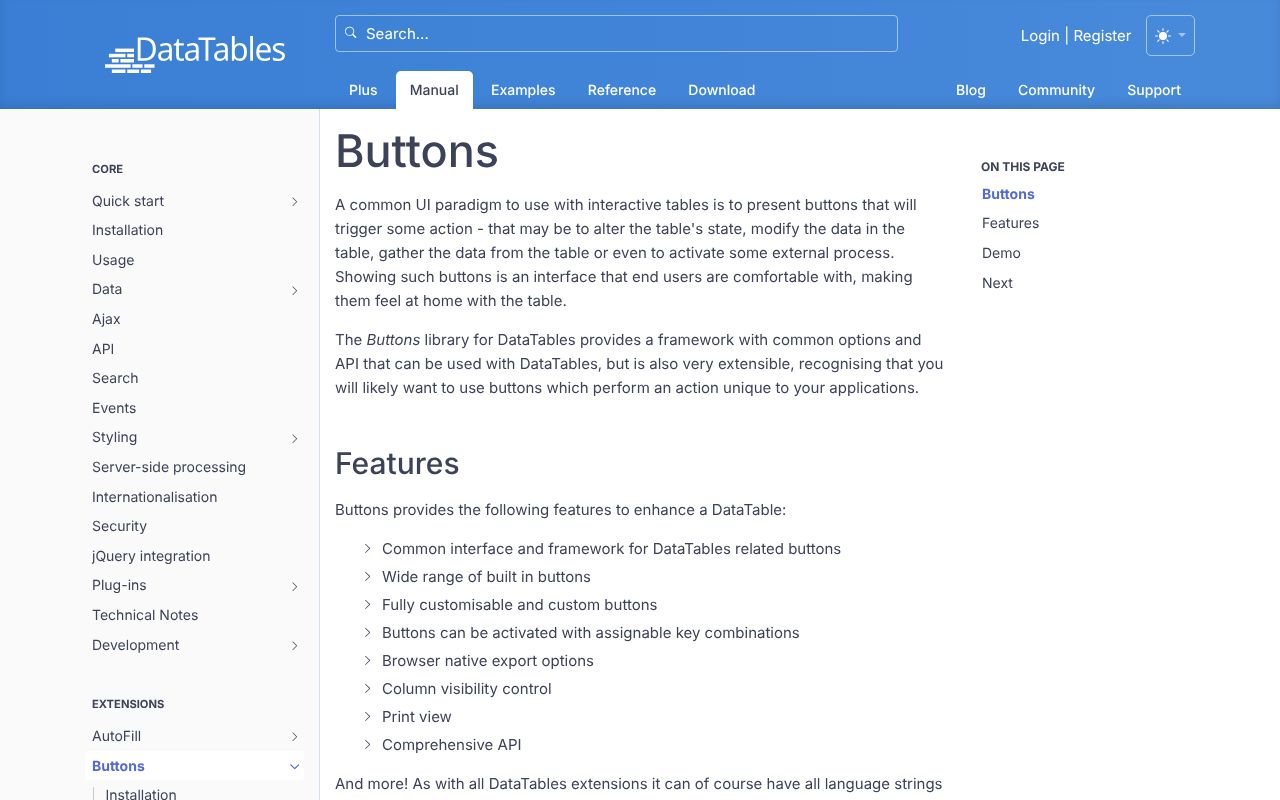
DataTables offers copy, CSV, Excel, PDF and print through its Buttons extension. It is a popular option, though it depends on jQuery and its Excel and PDF buttons rely on extra libraries (JSZip and pdfmake).
AG Grid
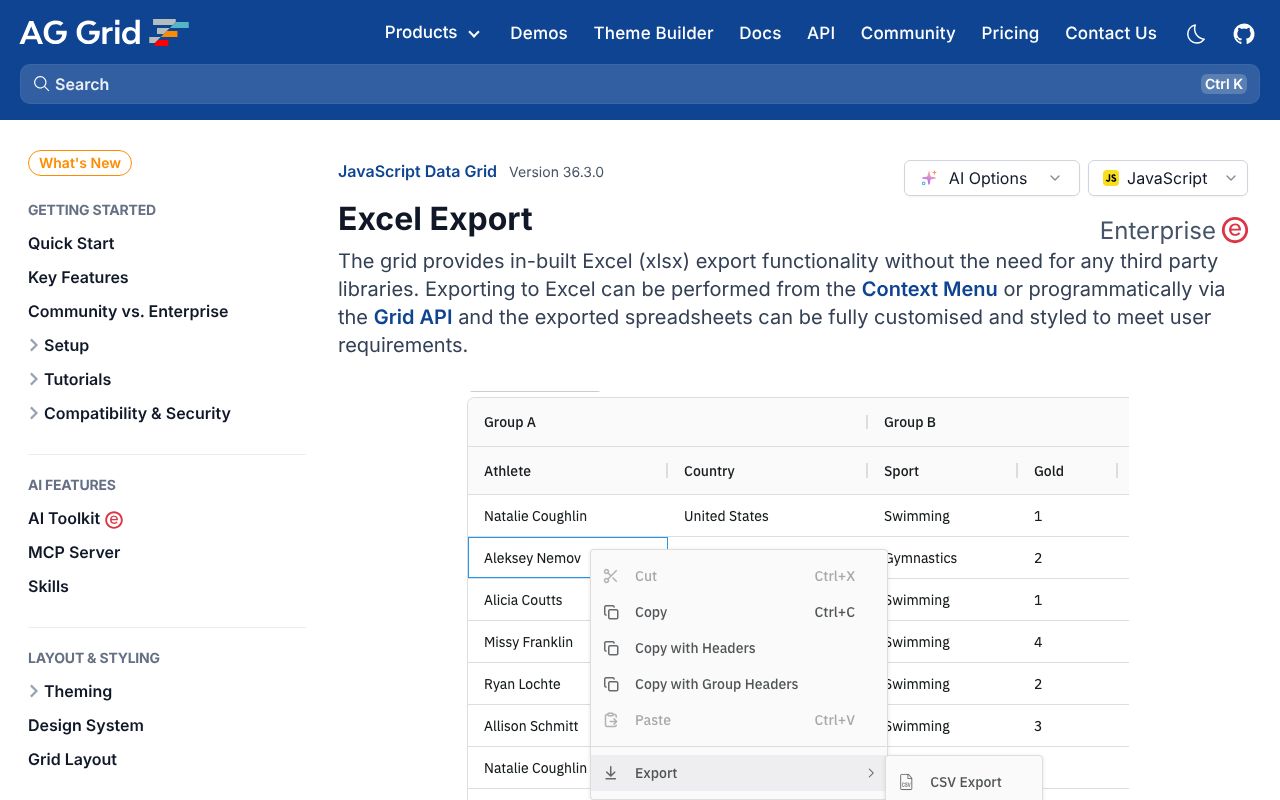
AG Grid has CSV export in the free Community edition. Its built in Excel export is an Enterprise feature, which means a paid licence. See AG Grid alternatives.
Frequently asked questions
How do I export an HTML table to Excel with JavaScript?
Use SheetJS: XLSX.utils.table_to_book(table) followed by XLSX.writeFile(workbook, "file.xlsx"). With Tabulator, load SheetJS and call table.download("xlsx", "file.xlsx").
How do I export a table to CSV in JavaScript without a library?
Build a CSV string from the cells (quote each value and double any quotes inside it), wrap it in a Blob, and trigger a download through a temporary link. Add a byte order mark if the file must open correctly in Excel.
How do I export only the filtered or selected rows?
In Tabulator, exports use the filtered rows by default. Pass "selected", "visible" or "all" as the fourth argument of download to change that.
How do I export a table to PDF in JavaScript?
Use jsPDF with the AutoTable plugin. Tabulator wraps both in table.download("pdf", "file.pdf") and supports page orientation, a title and full AutoTable styling.
Why does my CSV show strange characters in Excel?
Excel assumes a legacy encoding unless the file starts with a UTF-8 byte order mark. Prefix the content with , or in Tabulator pass { bom: true }.
Is there a free JavaScript table library with Excel export?
Yes. Tabulator is MIT licensed and its CSV, JSON, HTML, XLSX and PDF downloads are all free. XLSX and PDF use the open source SheetJS and jsPDF libraries, which you register with the table.
Get started
Read the download docs, try the examples, or follow the quickstart. Letting users change the data before they export it? See how to build an editable table in JavaScript, or add filtering, sorting and search first. The source is on GitHub.