React DataTables: How to Use DataTables in React (2026)
The project already uses DataTables on the old jQuery pages, and now the same table has to live inside a React app. Or the spec simply says "a table with search, paging and an Excel button", and DataTables is the library everyone on the team has used before. Either way, the question is the same: how do you run DataTables inside React without the two libraries fighting over the DOM?
This guide shows the official way, the datatables.net-react component, step by step: install, columns, React components in cells, export buttons, the API ref, events and server side data. We built every example in a Vite app with React 19.3.1, datatables.net-react 2.0.1 and DataTables 3.1.6 on November 27, 2026, and ran it in Chromium with Playwright. That testing turned up three behaviours that are easy to miss, which we cover in their own section. We build Tabulator, a free MIT licensed data grid, so we also show when it is the better fit, and we keep the DataTables facts to what we tested and what the DataTables React manual says.
The short answer
- Use the official component. Install
datatables.net-reactplus a styling package such asdatatables.net-dt, callDataTable.use(DT)once, then render<DataTable data={rows}>with<Column>children. It is MIT licensed, supports React 18.3 and 19, and since DataTables 3 it does not pull in jQuery. - Pass data as a prop, never map rows in JSX. DataTables owns the table body. React only owns the wrapper.
- Know the limits. In our tests,
optionsandon*event props were read once at mount, and everydatachange cleared and re-added all rows, which dropped the row selection. - Need inline editing for free, or tree data, grouping and spreadsheet features? DataTables Editor is a paid add-on. Tabulator in React does this under MIT.
DataTables in React: what changed in 2026
Most "DataTables React" tutorials online are from the jQuery era: install jQuery, call $(ref.current).DataTable() in componentDidMount and hope React never re-renders the table. Two things changed that advice.
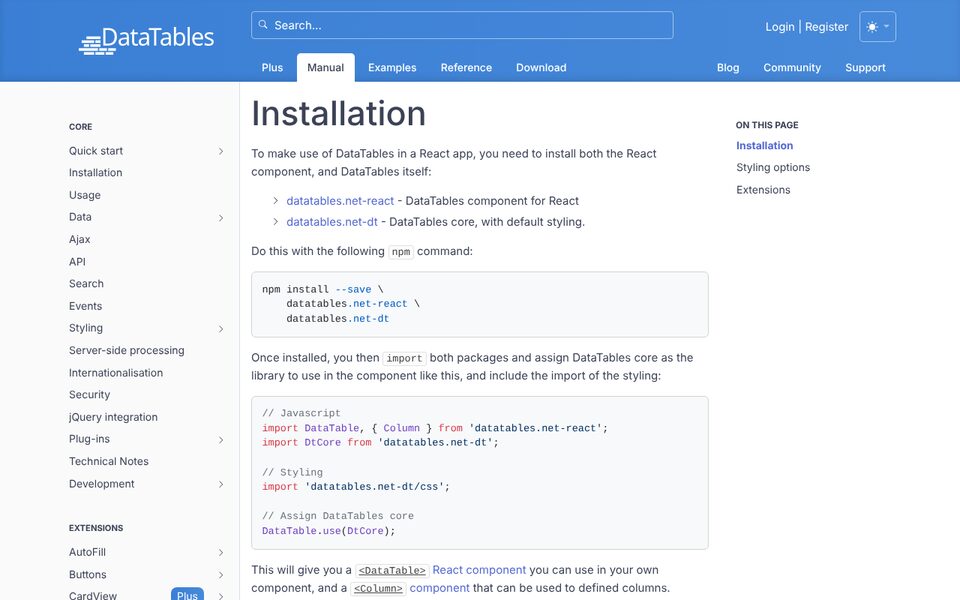
- There is an official React component. SpryMedia, the company behind DataTables, publishes datatables.net-react. Version 2.0 added the
<Column>component and deprecated the olderslotsprop. - DataTables 3 dropped jQuery as a dependency. When we installed
datatables.net-react,datatables.net-dtand the Buttons, Select and Responsive extensions,npm ls jquerycame back empty. The core packagedatatables.net3.1.6 has no runtime dependencies at all.
For scale: in the week before November 27, 2026, npm counted about 16,900 downloads of datatables.net-react, against about 903,000 for the datatables.net core, 381,000 for react-data-table-component and 258,000 for tabulator-tables. Most DataTables use is still outside React.
Install DataTables in a React app
You install two packages: the React component, and DataTables core bundled with a styling integration. The suffix on the core package picks the styling: -dt is the default DataTables look, -bs5 is Bootstrap 5, and there are packages for Bulma, Foundation and others.
npm install datatables.net-react datatables.net-dt
Then register the core library with the component once, usually in the module that renders the table:
import DataTable, { Column } from "datatables.net-react";
import DT from "datatables.net-dt";
import "datatables.net-dt/css";

DataTable.use(DT);
If you forget DataTable.use(DT), the component throws "DataTables library not set" on mount. The peer dependency range is react ^18.3.1 || ^19, so React 17 and older projects need the manual approach shown later.
A basic React DataTables example
Pass an array of objects as data and describe each column with <Column>. The data prop on a column is the property name to read, and title is the header text.
import DataTable, { Column } from "datatables.net-react";
import DT from "datatables.net-dt";
import "datatables.net-dt/css";

DataTable.use(DT);

export default function EmployeeTable({ rows }) {
  return (
    <DataTable data={rows} className="display" options={{ pageLength: 10 }}>
      <Column title="Name" data="name" />
      <Column title="Position" data="position" />
      <Column title="Office" data="office" />
      <Column title="Start date" data="start_date" />
      <Column
        title="Salary"
        data="salary"
        render={DT.render.number(",", ".", 0, "$")}
      />
    </DataTable>
  );
}
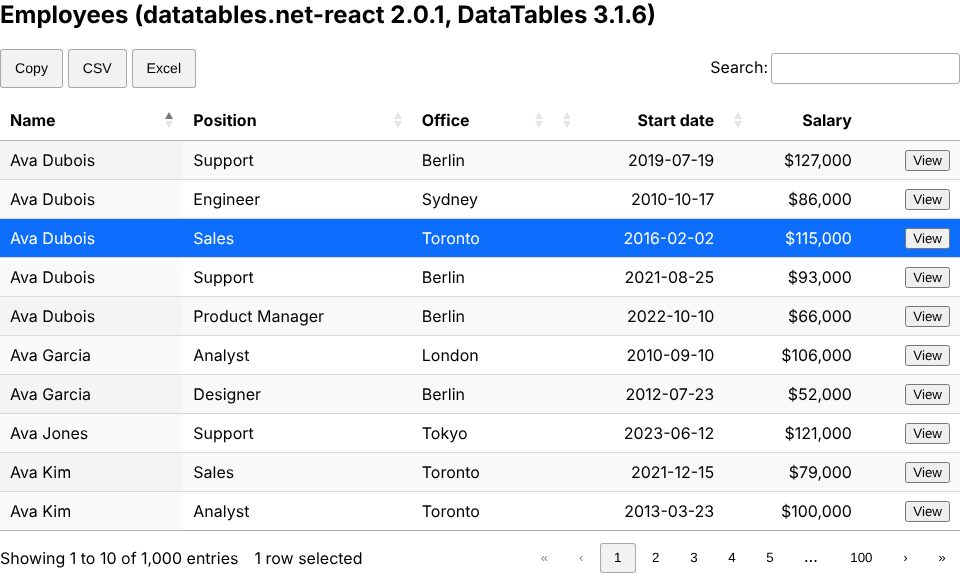
That renders the familiar DataTables UI: a search box, sortable headers, paging and the "Showing 1 to 10 of 1,000 entries" line. className="display" turns on the default stripes and hover styling. Any DataTables option goes in the options object, and any column option goes in <Column options={...}>:
<Column title="ID" data="id" options={{ orderable: false, searchable: false }} />
One rule matters more than any other: do not build the rows yourself with rows.map(r => <tr>...) inside the table. The DataTables manual warns that React and DataTables would then both try to control the same DOM elements. Hand the array to the data prop and let DataTables draw the body. You can still put a static <thead> inside <DataTable> when you need a complex header with colspan and rowspan.
Loading data over Ajax
If the data comes from an endpoint, use the ajax prop instead of data. It maps straight to the DataTables ajax option, so the string form fetches JSON and the object form lets you set the method and headers:
<DataTable ajax="/api/employees" className="display">
  <Column title="Name" data="name" />
  <Column title="Office" data="office" />
</DataTable>
React components inside DataTables cells
Buttons, links and router links in cells are where the old jQuery approach fell apart. With version 2 of the component you give <Column> a child function that returns JSX:
<Column title="" data="id" options={{ orderable: false, searchable: false }}>
  {(id, type, row) => (
    <button onClick={() => openEmployee(row)}>View</button>
  )}
</Column>
The function receives the cell value (here the row's id), the render type, the whole row and a meta object. The component renders the JSX into the cell through a React portal, so state, context and hooks work as normal. Sorting and searching still use the raw data value, which means DataTables only renders the JSX for rows it is about to display. You cannot combine a child function and a render prop on the same column: the child wins.
Older code uses the slots prop on <DataTable> for the same thing. The manual marks slots as deprecated since version 2, so use <Column> children for new work.
Export buttons, row selection and other extensions
Extensions install as separate packages, each with a styling suffix that matches your core package. Import them once and they register themselves with DataTables. Then turn them on through options. Here is the setup from the screenshot above, with Copy, CSV and Excel buttons and click to select rows:
npm install datatables.net-buttons-dt datatables.net-select-dt jszip
import jszip from "jszip";
import DataTable, { Column } from "datatables.net-react";
import DT from "datatables.net-dt";
import "datatables.net-buttons-dt";
import "datatables.net-buttons/js/buttons.html5.mjs";
import "datatables.net-select-dt";
import "datatables.net-dt/css";
import "datatables.net-buttons-dt/css";
import "datatables.net-select-dt/css";

DataTable.use(DT);
DT.Buttons.jszip(jszip); // needed for the Excel button

const options = {
  select: true,
  layout: { topStart: "buttons", topEnd: "search" },
  buttons: ["copy", "csv", "excel"],
};

export default function EmployeeTable({ rows }) {
  return (
    <DataTable data={rows} className="display" options={options}>
      {/* Column components as above */}
    </DataTable>
  );
}
A version note that cost us a few minutes: the DataTables React usage guide registers JSZip with DtCore.use(jszip, 'jszip'). With DataTables 3.1.6 and Buttons 4.1.4 that call did nothing in our app, and the Excel button silently did not appear (the button is hidden when JSZip is missing). DT.Buttons.jszip(jszip), which is the setter Buttons 4 exposes, fixed it. PDF export works the same way with DT.Buttons.pdfMake(pdfmake).
Responsive, FixedHeader, RowGroup, Scroller, KeyTable and the other free extensions follow the same pattern. Some extensions are now part of the paid DataTables Plus suite, including Editor and CardView. For the full price list, see our DataTables Editor pricing guide.
Use the DataTables API from React
Pass a ref to <DataTable> and call ref.current.dt() to get the DataTables API instance. Anything in the API reference is then available, for example the selected rows or the current page:
import { useRef } from "react";

export default function EmployeeTable({ rows }) {
  const table = useRef(null);

  function exportSelected() {
    const dt = table.current.dt();
    const selected = dt.rows({ selected: true }).data().toArray();
    console.log(selected, dt.page.info());
  }

  return (
    <>
      <button onClick={exportSelected}>Log selected rows</button>
      <DataTable ref={table} data={rows} options={{ select: true }}>
        <Column title="Name" data="name" />
      </DataTable>
    </>
  );
}
Listening to DataTables events
Events are props named on plus the event name in camel case, so draw becomes onDraw, xhr becomes onXhr and select becomes onSelect. Read the gotcha below before you use component state inside them.
Server side processing in React
For tables too large to send to the browser, DataTables' server side processing sends the page, sort and search to your API on every draw. In React it is just two options:
<DataTable
  ajax={{ url: "/api/employees", type: "POST" }}
  options={{ serverSide: true, processing: true }}
>
  <Column title="Name" data="name" />
  <Column title="Office" data="office" />
</DataTable>
Your endpoint has to read the DataTables request parameters (start, length, order, search) and reply with draw, recordsTotal, recordsFiltered and data. The server side manual lists the exact format. For more on this pattern in React generally, see React data table pagination, sorting and filtering.
Three gotchas we hit in testing
We read the component source and then checked each behaviour in the browser. None of these are bugs as such. They follow from DataTables being an imperative library that keeps its own state. But each one surprises a React developer, so plan for them.
1. Changing the options prop after mount does nothing
The component creates the DataTable once, in a mount effect, with the options it has at that moment. We passed pageLength from state, then set it from 10 to 25. The table kept showing 10 rows, and dt().page.len() still returned 10. The same applies to columns and the <Column> list.
Fix: change settings through the API (table.current.dt().page.len(25).draw()), or force a new table with a key that changes when the options do, for example <DataTable key={pageLength} ...>. The key approach rebuilds the whole table, so it also resets paging, sort and selection.
2. Event props capture the first render
Event handlers are read at the same moment as the options. We logged a clicks state value from onDraw, clicked a React button in a cell (which set clicks to 1), then sorted the table. The draw handler still logged clicks=0. It is the classic stale closure: the function DataTables holds is the one from the first render.
Fix: keep the latest value in a ref and read the ref inside the handler, or only call stable functions such as a state setter with an updater (setCount(c => c + 1)).
const filtersRef = useRef(filters);
filtersRef.current = filters;

<DataTable onDraw={() => saveView(filtersRef.current)} ... />
3. Every data change replaces every row
The data prop is reactive, which is the main reason to use the component. But on each change it calls clear(), then rows.add(newData), then draw(false). With 1,000 rows that was fast in our test, and draw(false) kept the current page and sort order. What it does not keep is row state: we selected a row, changed the salary of a different row in state, and the selection count went from 1 to 0. Child row state and anything else attached to row objects goes the same way.
Fix: for small updates, skip the prop and use the API (dt().row(...).data(newRow).draw(false)), and keep the data prop for full reloads. Or restore the selection after the update from a list of ids you keep in state.
Using DataTables in React without the wrapper
On React 17 or older, or when you want full control, you can mount DataTables yourself. This is what the wrapper does under the hood, without the portal support for JSX cells:
import { useEffect, useRef } from "react";
import DataTable from "datatables.net-dt";
import "datatables.net-dt/css";

export default function EmployeeTable({ rows }) {
  const el = useRef(null);
  const dt = useRef(null);

  useEffect(() => {
    dt.current = new DataTable(el.current, {
      data: rows,
      columns: [
        { title: "Name", data: "name" },
        { title: "Office", data: "office" },
      ],
    });
    return () => dt.current.destroy();
  }, []);

  useEffect(() => {
    if (dt.current) dt.current.clear().rows.add(rows).draw(false);
  }, [rows]);

  return <table ref={el} className="display" />;
}
Always destroy the table in the effect cleanup. In development, React StrictMode mounts, unmounts and mounts again, and a table that was never destroyed leaves duplicate controls behind. If you are still on DataTables 1.x with jQuery, the same shape works with $(el.current).DataTable(...), but upgrading removes jQuery from your bundle.
When DataTables is not the right fit for React
DataTables is a solid choice when the spec is "search, sort, page and export" and the team already knows it. It gets harder when the spec grows. These are the requests we see most often, and what DataTables needs for each:
| Requirement | DataTables in React | Tabulator in React |
|---|---|---|
| Inline cell editing with validation | Editor, part of paid DataTables Plus (from $219 per developer) | Built in, MIT |
| Per column header filters | Custom code, or the ColumnControl extension | Built in (headerFilter) |
| Tree data and nested rows | Not built in (child rows are free-form HTML) | Built in (dataTree) |
| Row grouping with group headers | RowGroup extension (free) | Built in (groupBy) |
| Footer totals | footerCallback code | Built in (bottomCalc) |
| Excel, CSV and PDF export | Buttons extension plus JSZip or pdfmake | Built in, plus SheetJS or jsPDF |
| Virtual scrolling for large data | Scroller extension (free) | Built in (virtual DOM on by default) |
| Update one row and keep the selection | Use the API, not the data prop | updateData() keeps it |
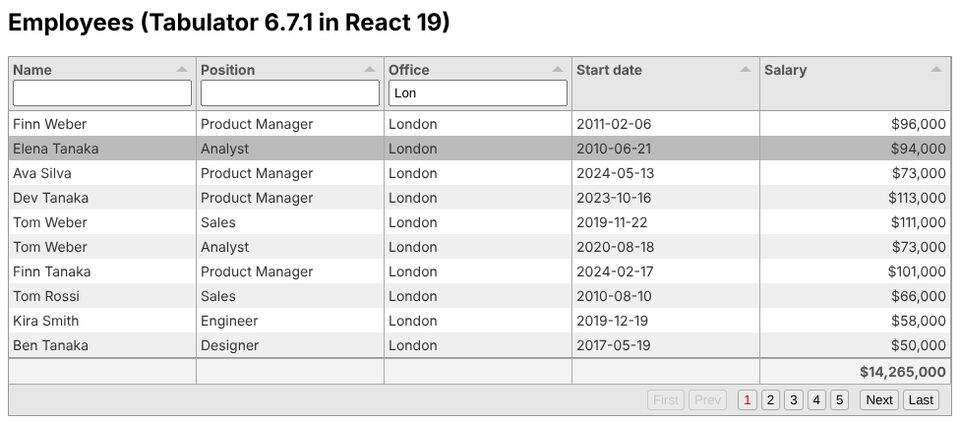
Tabulator has no React dependency. You mount it from an effect, as with the manual DataTables approach above, and everything in the table is configuration. Here is the same employee table with header filters, inline editing, a salary total and selection:
import { useEffect, useRef } from "react";
import { TabulatorFull as Tabulator } from "tabulator-tables";
import "tabulator-tables/dist/css/tabulator.min.css";

export default function EmployeeTable({ data, onSave }) {
  const el = useRef(null);
  const table = useRef(null);
  const built = useRef(false);

  useEffect(() => {
    table.current = new Tabulator(el.current, {
      data,
      layout: "fitColumns",
      pagination: true,
      paginationSize: 10,
      selectableRows: true,
      columns: [
        { title: "Name", field: "name", headerFilter: "input", editor: "input" },
        { title: "Position", field: "position", editor: "list",
          editorParams: { valuesLookup: true },
          headerFilter: "list", headerFilterParams: { valuesLookup: true } },
        { title: "Office", field: "office", headerFilter: "input" },
        { title: "Start date", field: "start_date", editor: "date" },
        { title: "Salary", field: "salary", editor: "number", hozAlign: "right",
          formatter: "money", formatterParams: { symbol: "$", precision: 0 },
          bottomCalc: "sum", bottomCalcFormatter: "money",
          bottomCalcFormatterParams: { symbol: "$", precision: 0 } },
      ],
    });
    table.current.on("tableBuilt", () => { built.current = true; });
    table.current.on("cellEdited", (cell) => onSave(cell.getRow().getData()));
    return () => table.current.destroy();
  }, []);

  useEffect(() => {
    if (built.current) table.current.replaceData(data);
  }, [data]);

  return <div ref={el} />;
}
Two details from our test run. The built ref matters: calling replaceData before the table has finished building threw an error in our first version. And for single row changes, table.current.updateData([{ id: 2, salary: 1 }]) changed the row and kept it selected, while a full replaceData cleared the selection, just like DataTables. As with DataTables, read the latest props through a ref inside long lived callbacks such as cellEdited.
Other React options worth a look: react-data-table-component (Apache 2.0, a simple declarative table that ranks first for "react datatable"), TanStack Table (MIT, headless, you write all the markup) and AG Grid Community (MIT, with grouping and pivoting in the paid Enterprise tier). We compare these and more in the best React table libraries, and the non React field in DataTables alternatives.
Which approach should you pick?
- The team knows DataTables and the spec is search, sort, page and export: use
datatables.net-react. Pass data as a prop, change settings through the API, and use refs in event handlers. - You are moving old jQuery DataTables pages into React: start with the official component so the options and extensions carry over, then replace
$.fn.dataTablecalls with the API from the ref. - The spec includes editing, tree data, totals or spreadsheet behaviour: use Tabulator in React. Those features are built in and MIT licensed, so there is no Editor licence to budget for. Our editable table guide walks through validation, add and delete rows and saving to an API.
- You want full control of the markup: use TanStack Table and build the UI yourself.
Frequently asked questions
Can I use DataTables with React?
Yes. The official datatables.net-react package gives you a <DataTable> component and a <Column> component. It supports React 18.3 and 19, and is MIT licensed like DataTables core.
Does DataTables still need jQuery in React?
No. DataTables 3 has no jQuery dependency, and in our React 19 test app jQuery was not installed at all. DataTables 1.x needed jQuery, which is why older tutorials import it.
How do I update DataTables data in React?
Pass state to the data prop and call the setter. The component clears the table and adds the new rows, keeping the current page and sort. For single row edits, use the API from the ref so row selection is not lost.
Why don't my option changes apply to the React DataTable?
The component reads options once, when the table is created. Use the DataTables API to change settings after mount, or change the component's key to rebuild the table.
How do I render a React component in a DataTables cell?
Give <Column> a child function that returns JSX, for example (id, type, row) => <Button row={row} />. The component renders it through a React portal, so hooks and context work.
Is DataTables free for React?
DataTables core, the React component and most extensions are MIT licensed and free. Editor, CardView and some other extensions are part of the paid DataTables Plus suite. Tabulator includes editing, tree data and calculations for free under MIT.
Get started
If you stay with DataTables, start from the DataTables React manual and keep the three gotchas above in mind. If you want editing and the rest built in, install Tabulator with npm install tabulator-tables, copy the component above and read the React docs, the editing docs and the filter docs, or browse the examples. Tabulator is on GitHub under the MIT licence.